The Wonderful World of Copilot Cowork

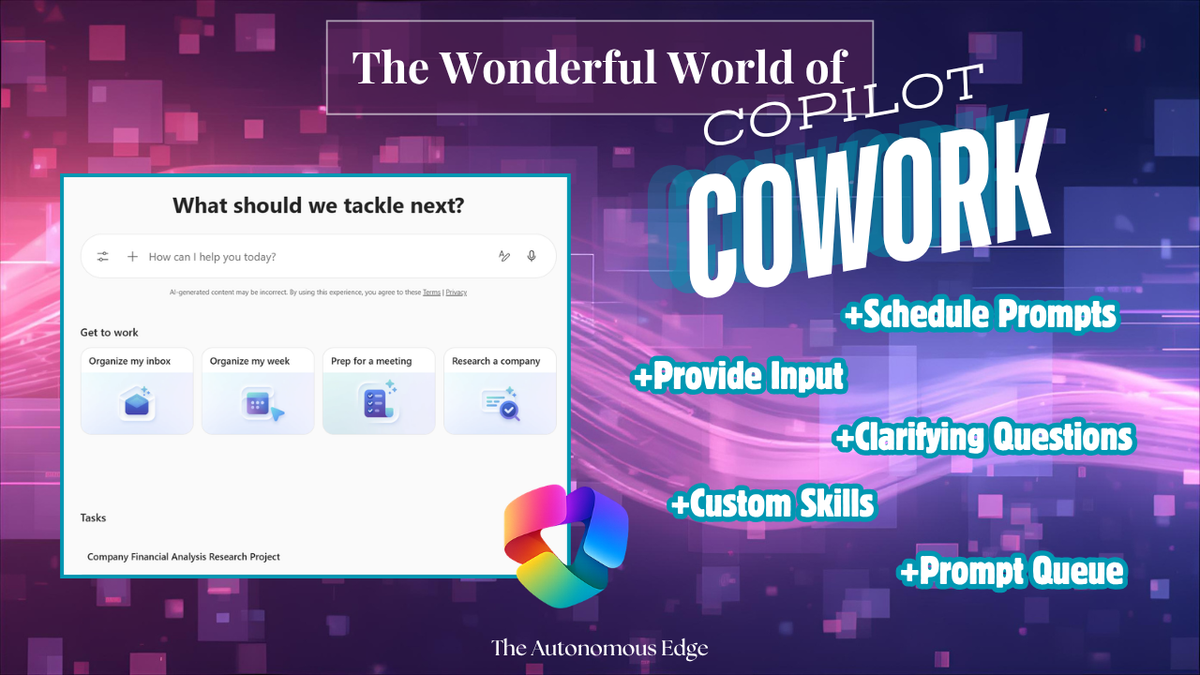
I played around with Copilot Cowork and I am truly amazed! I clicked every button, expanded every menu, tested all the prompts, and this is what I discovered.
If you've ever wished Copilot could do more than just answer questions, Cowork is definitely something worth paying attention to. In case you're unfamiliar, Copilot Cowork is a new way of working where Microsoft Copilot collaborates alongside users in real time. Cowork not only provides you with information but can also execute tasks. Cowork is currently only available in Frontier.
Let's start off by taking a look at the main screen– introducing Copilot Cowork! I've labeled the key areas in the screenshot below.
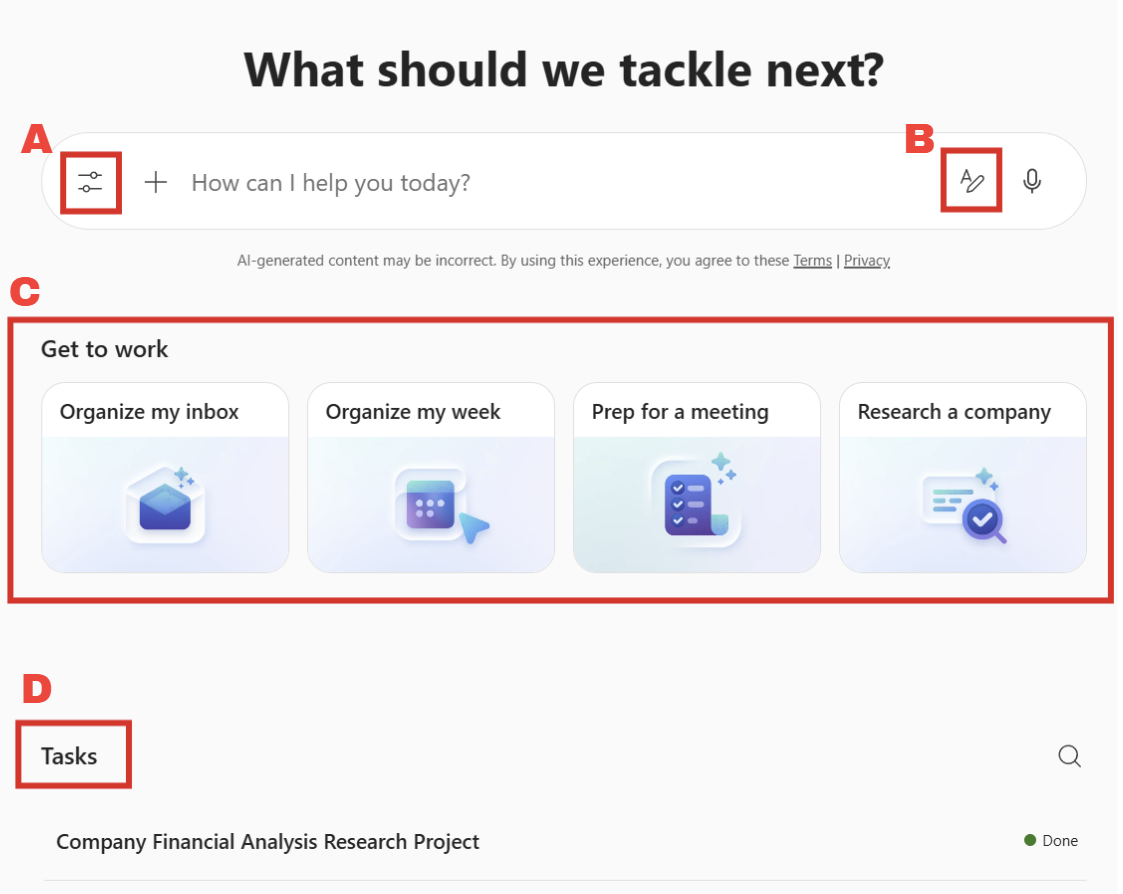
At first glance, it has a similar look to the Copilot we're used to but with some very distinct differences.
A- Models and plugins: This is where you can switch models and use plug-ins. At the moment, you can switch between Claude Sonnet 4.6, Claude Opus 4.6, or Auto (which lets Copilot decide).
B- Format Text: I was surprised to see this in Cowork, but after trying different prompts, I found it helpful to use bullet points and numbered lists to structure my prompts before submitting.
C- Suggested Prompts: Suggested prompts in Cowork appear as thumbnails. When selected, very detailed prompts are populated in the prompt field.
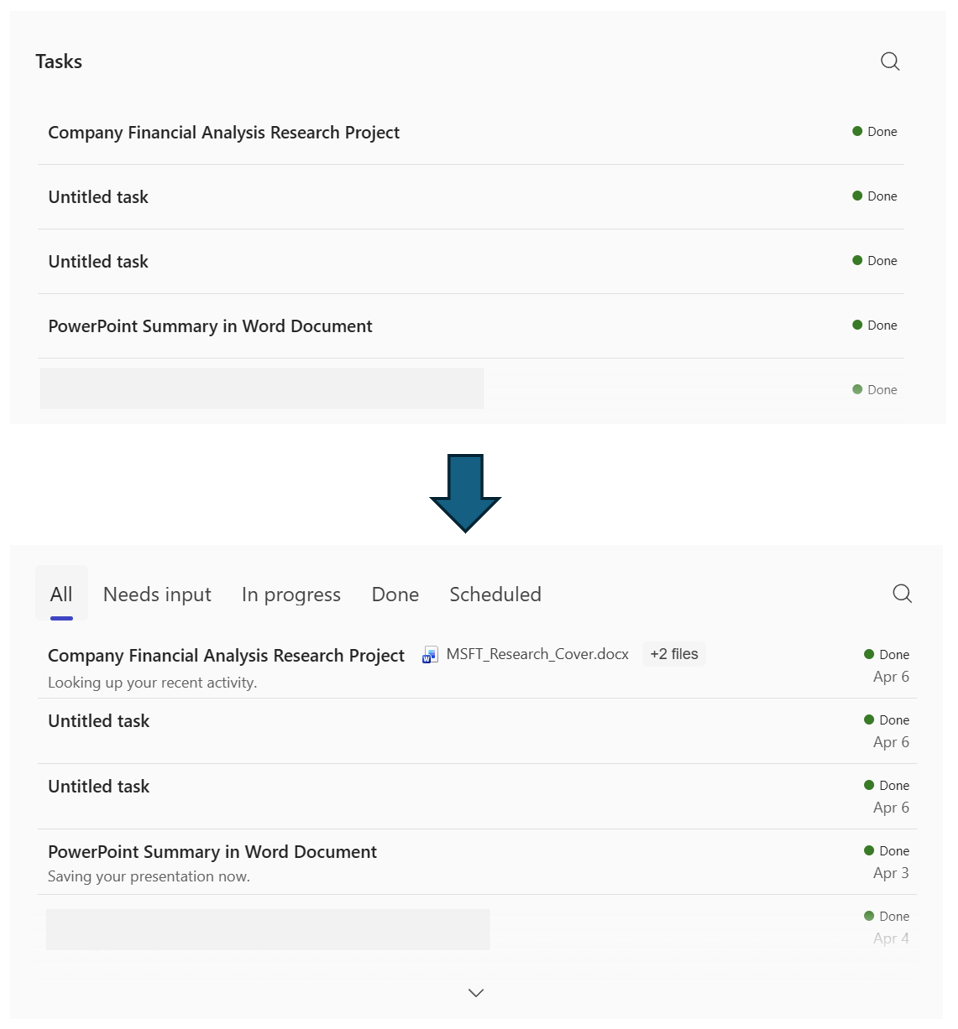
D- Tasks: Conversations in Cowork are referred to as Tasks. When you hover over the Tasks section, you can view your Tasks grouped into different buckets:
- All
- Needs input
- In progress
- Done
- Scheduled
This allows you to quickly find tasks. You can delete a task by hovering over it.
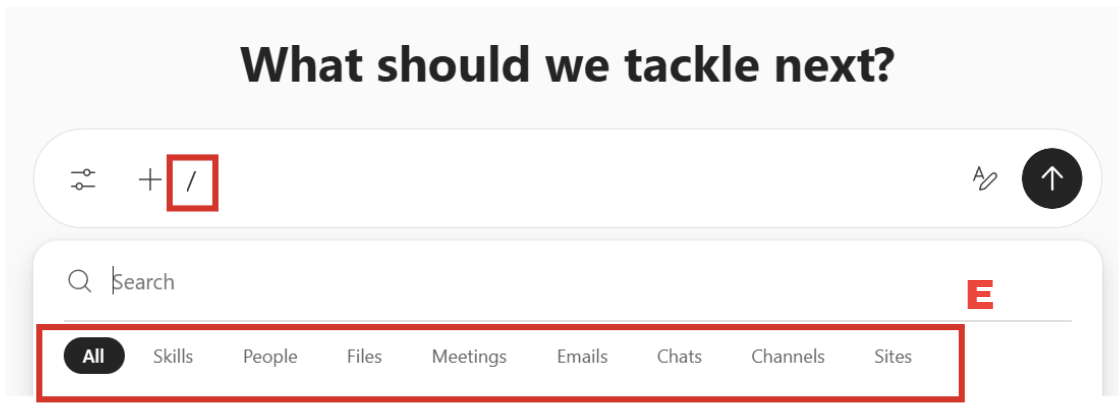
E- Hotkey "/": The hotkey exposes all references you can pull into your prompt. These are similar to Copilot, but what's new is Skills. Skills are Cowork's capabilities that power it to execute tasks. They include calendar management, file generation (Word, Excel, PPT, PDF), scheduling, and more.
Suggested Prompts
Now let's take a look at the suggested prompts available in Cowork. The Suggested Prompts are a great way to become familiar with Cowork's capabilities.
Organize my inbox
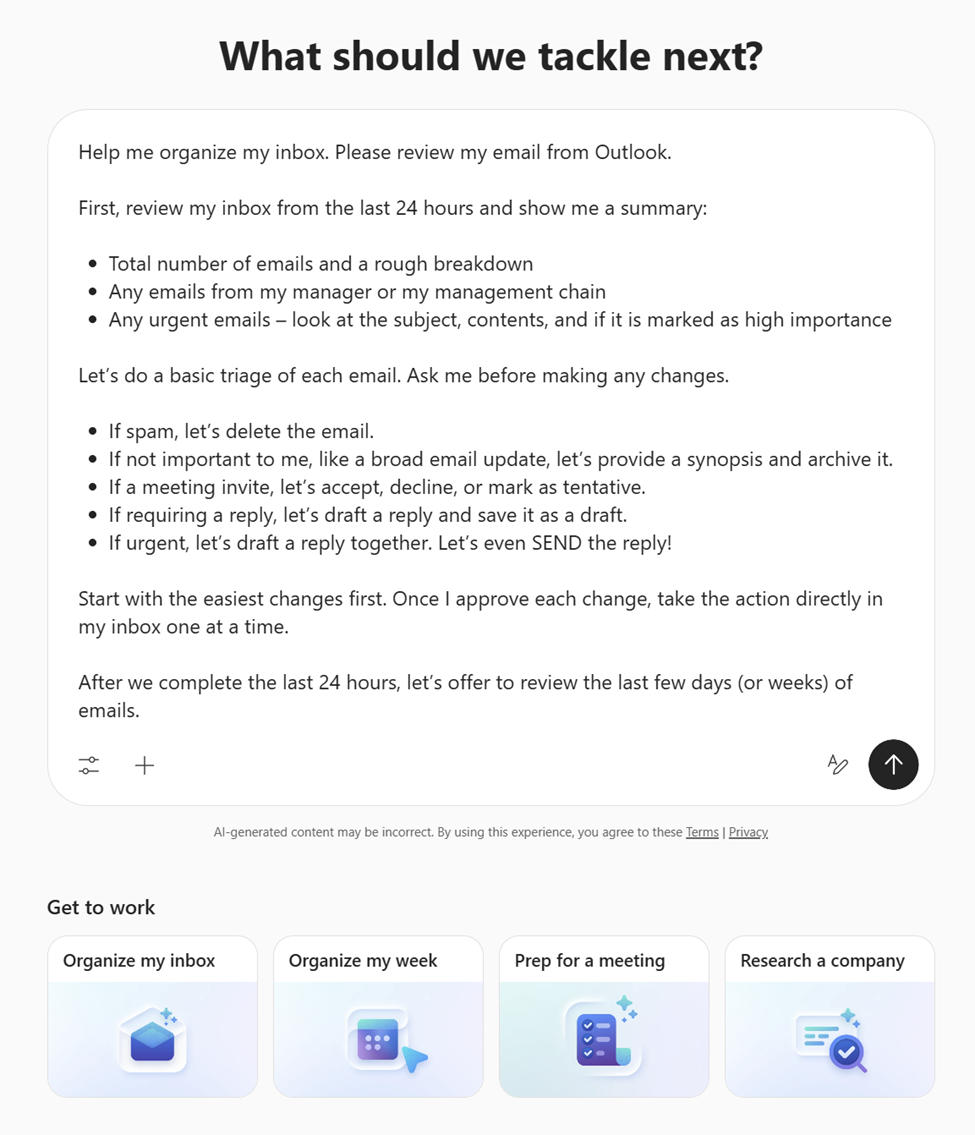
It's important to note that this prompt will not magically clean up your inbox with a single click. BUT, it does an excellent job of walking you through the steps to organize your inbox. Cowork will begin by batching your emails into categories and then ask how you want to proceed. This is important because it gives you the final say in what gets deleted, archived, or filed. Best part? It only took a few minutes to clean up my entire inbox — literally!
Organize my week
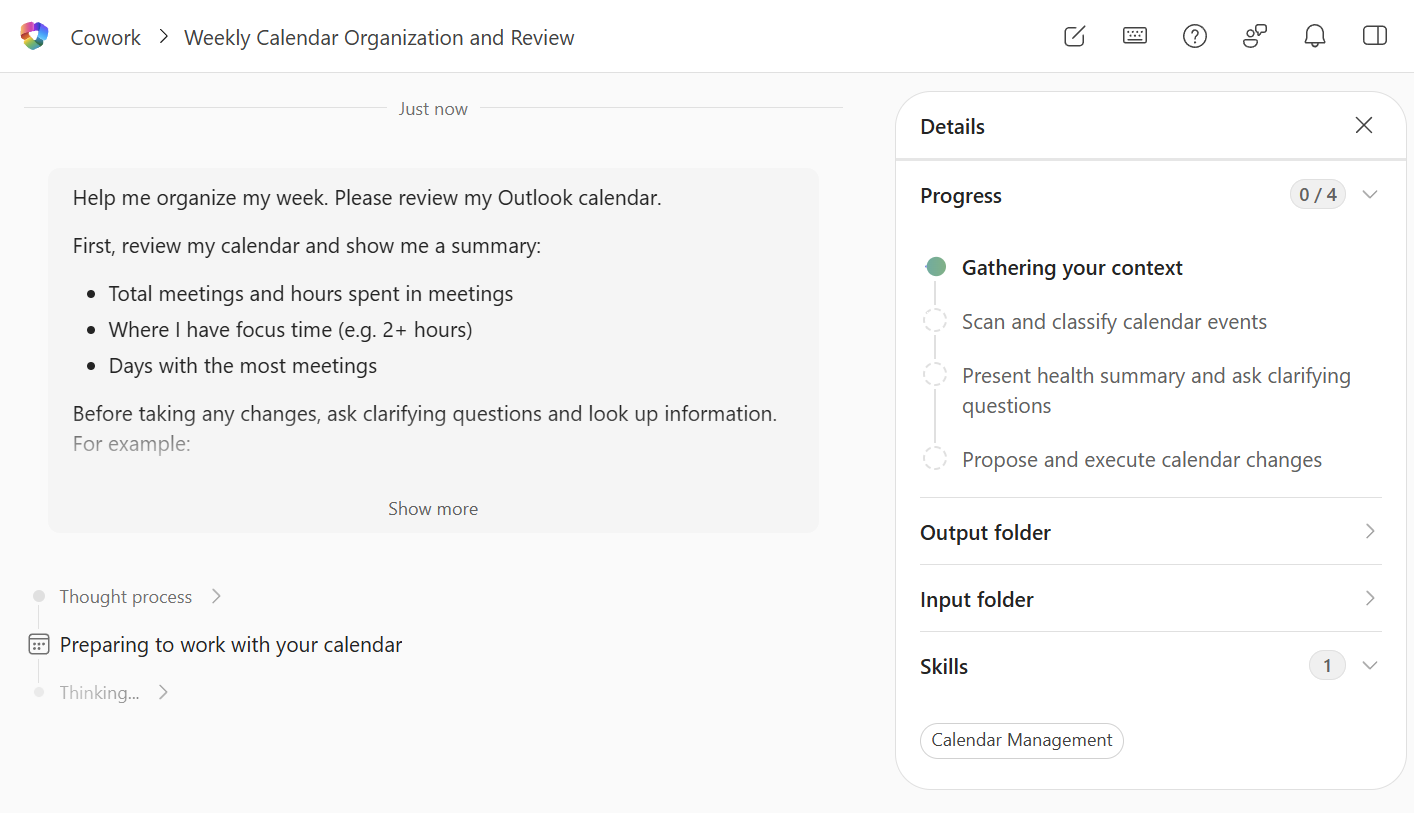
The goal of this prompt is to help you optimize your week by highlighting where your time is going and giving you the opportunity to block focus time. You'll notice that this prompt leverages a Cowork skill called "Calendar Management," which you can see in the Details Panel.
Prep for a meeting
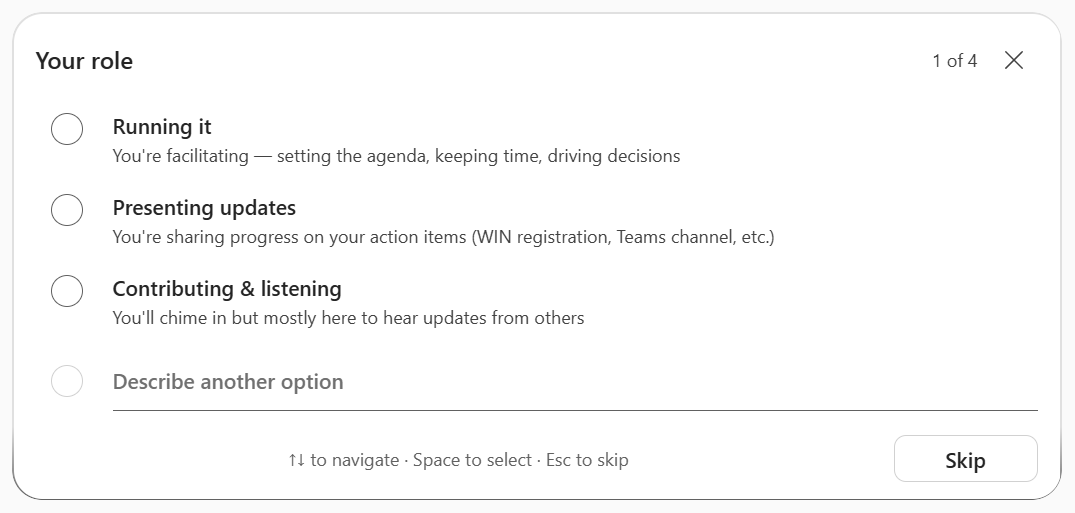
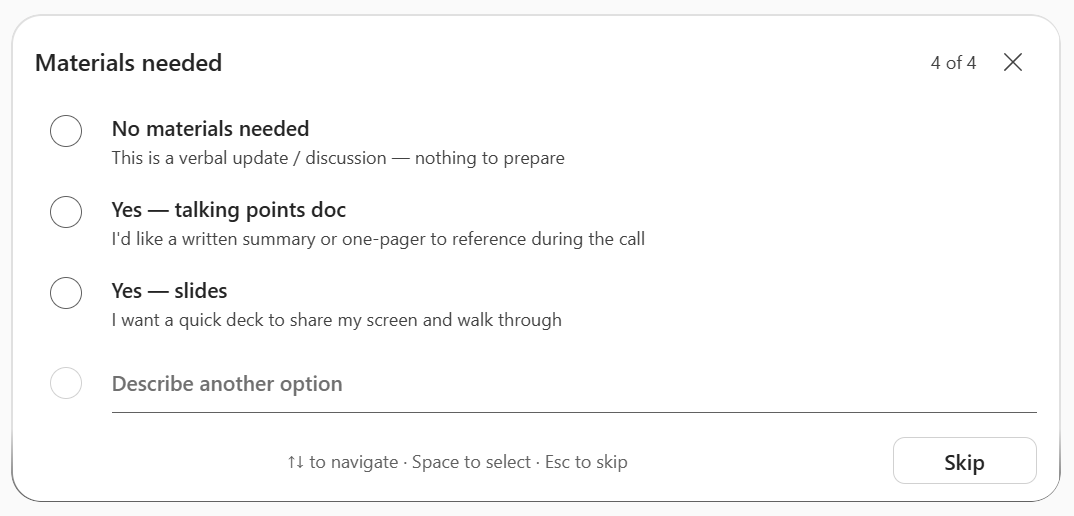
I can see this prompt playing on repeat! This powerful prompt will pull in all relevant information for your next call to make sure you are prepared. What sets Cowork apart from standard Copilot here is the clarifying questions Cowork asks to better understand your role and responsibilities on the call. This includes asking what type of material you're looking for, recognizing that for some calls you may just need talking points, while for others you may need a deck to present.
Research a Company
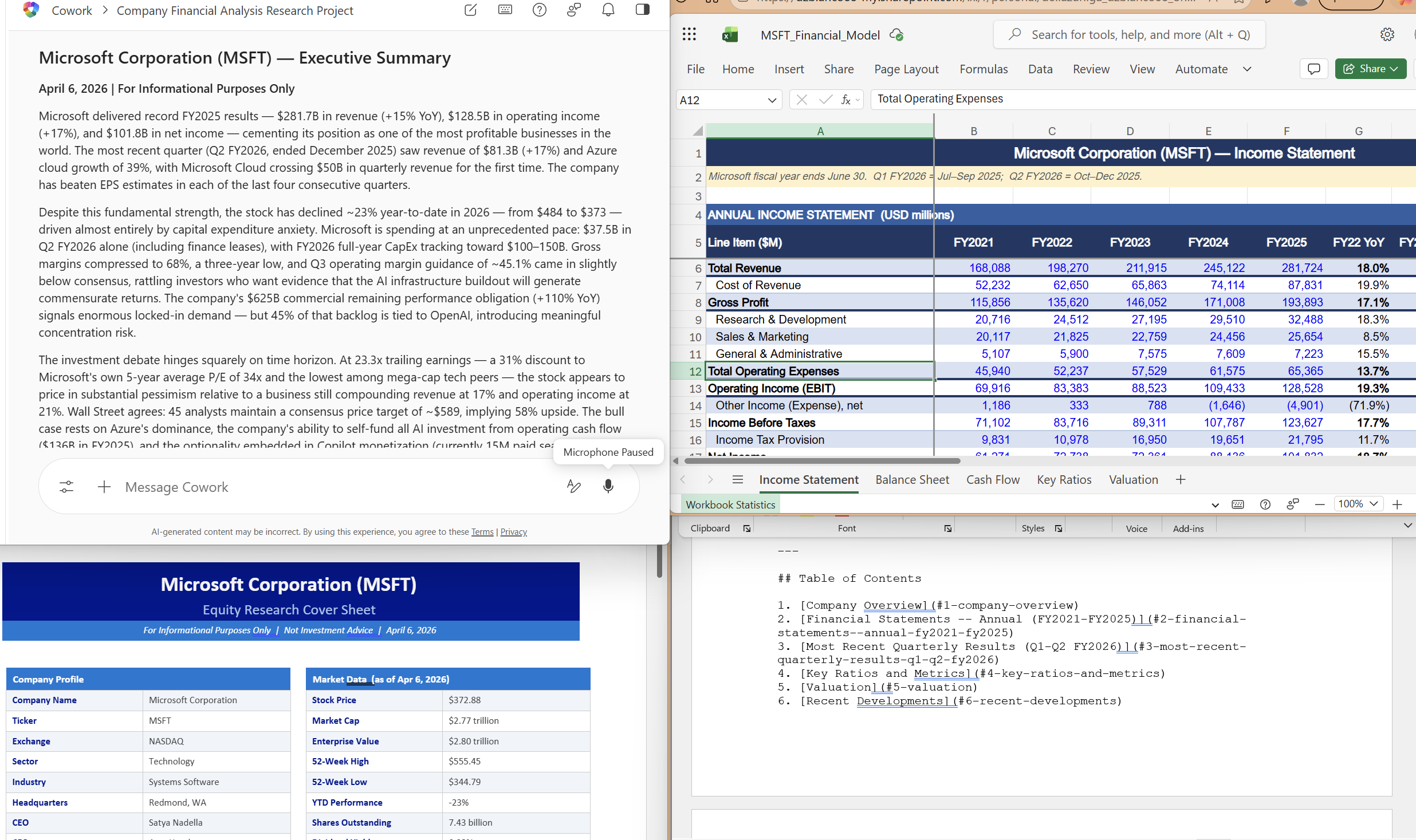
This prompt will be the sales team's new best friend! When it says it uses deep research, it really means it. I tested the prompt by researching Microsoft and the output was thorough and spectacular. It included an Executive Summary, Equity Research report with a company profile, a full financial model, and a financials report including latest financial statements, most recent quarterly results, key ratios and metrics, valuation, and recent developments.
This level of detail used to take hours, if not days, to compile, and now it takes minutes.
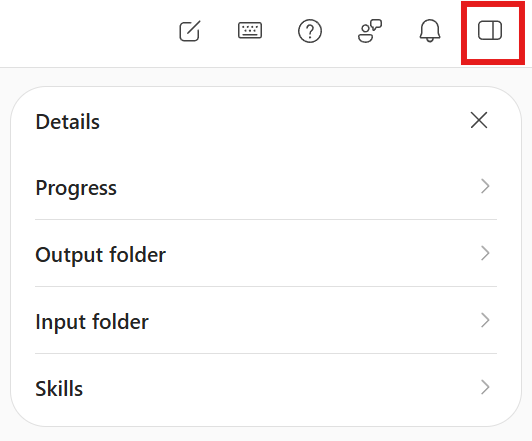
The Details Panel
The Details Panel gives you visibility into what Cowork is working on, what information you provided, what information Cowork generated for you, and how Cowork works.
At the start of a task, the main sections of the Details Panel include Progress, Output folder, Input folder, and Skills. However, as you continue your conversation, additional sections may appear, such as:
- Scheduled for displaying the prompts Cowork scheduled for you
- Permissions for displaying permissions you've granted, such as "Always archive emails"
What I Loved About Cowork
Now that we're familiar with the user interface and suggested prompts, I want to share some of my favorite features of Cowork — in no particular order.
1- Cowork's responses: I noticed that the responses Cowork provides are concise and straight to the point. No fluff. No unsolicited advice. It just gives me exactly what I asked for. This is something I've struggled with in Copilot because even when I instruct it to keep things brief, it always ends up giving me too much information.
2- Pre-populated prompts: Once you've initiated a task, Cowork will recommend a follow-up question. But unlike Copilot, Cowork pre-fills it into the prompt field and all you have to do is hit the Tab button and send. It's minor, but I found this so helpful as I was working on a task.

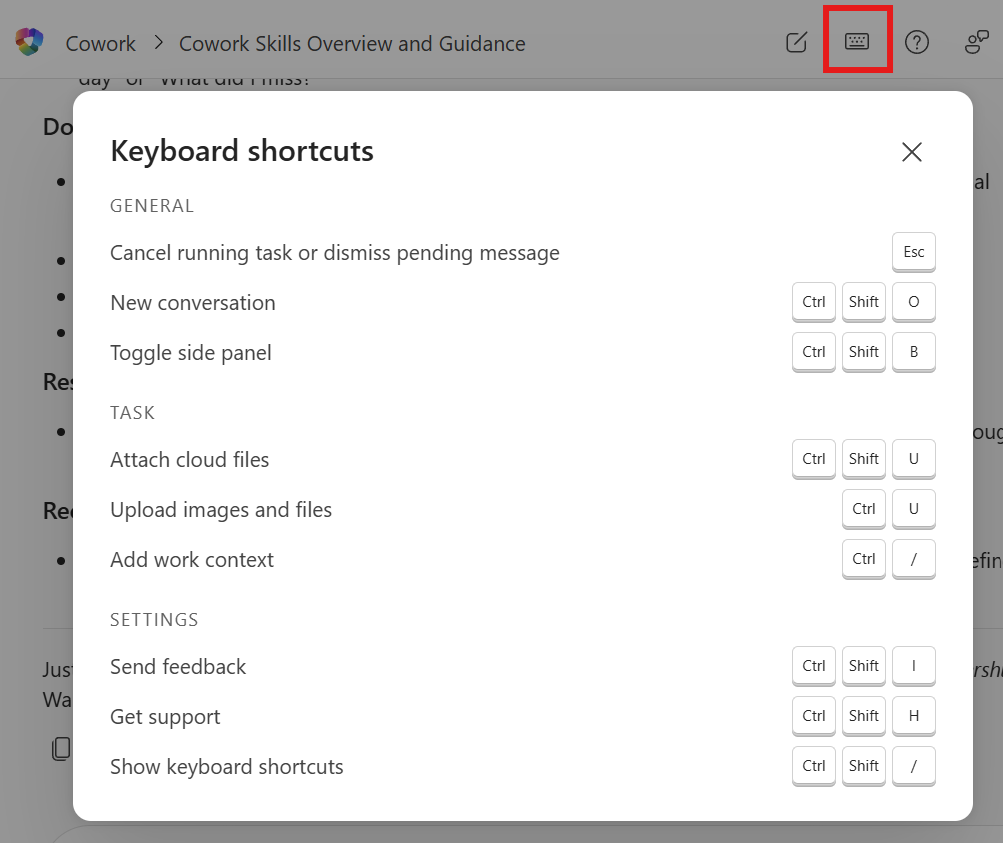
3- Keyboard shortcuts: I'm a sucker for keyboard shortcuts, and the fact that we get a list of them directly in Cowork was especially helpful.
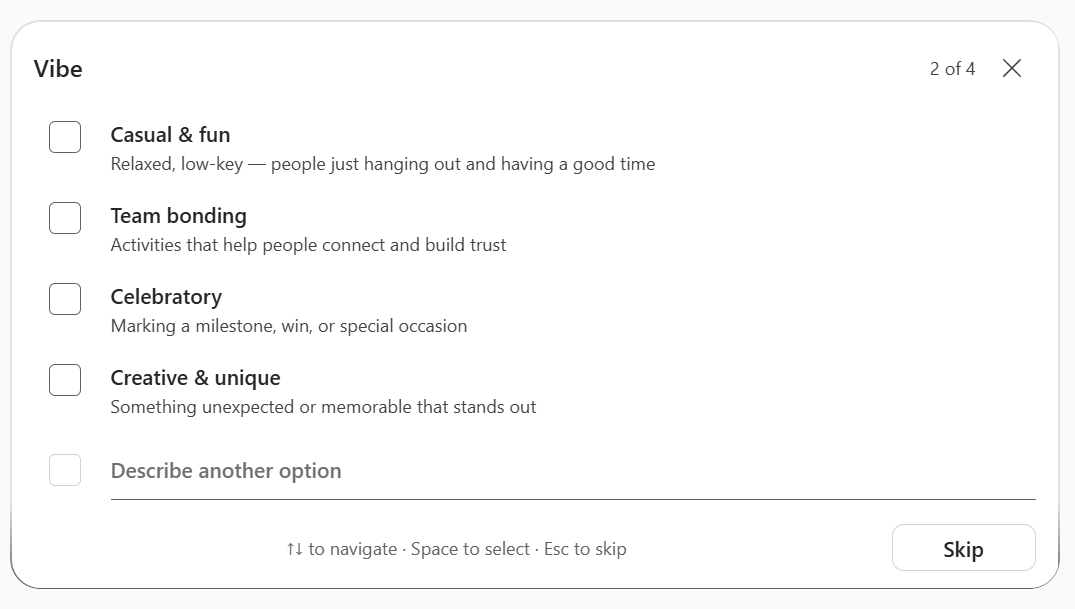
4- Clarifying questions: This was one of my favorite things about Cowork. Unlike Copilot, where I'm asked open-ended questions for additional clarity, Cowork gives me short, quick questions where I can simply select an option and move on. For any multi-select question, I can select all answers that apply AND also provide more detail through the "Other" option. Cowork will take all of that information to generate a response.
Cowork will only ask you four questions at a time, making it easy, digestible, and quick to provide additional context without having to write an entire paragraph.
5- Scheduled prompts: Simply ask Cowork to schedule a task and it will leverage the same scheduling power used for scheduled prompts in Copilot. Once set up, the task will appear under the Scheduled category on the Cowork home page.
6- Outputs: Any files generated by Cowork no longer get lost in the conversation. Instead, they are stored in the Outputs section of the Details Panel. You can also view the file directly in Cowork. One feature I hope they implement is the ability to edit the file directly in Cowork. At the moment, you have to open the file in the application to make any edits.
Fun tip: if you ask Cowork to make updates to a file it previously created, it will make those updates directly in the original file and not create a new one.
7- Custom skills: As mentioned above, Cowork comes with its own set of skills. However, with a little bit of work, you can create your own custom skills that Cowork can leverage in future tasks.
8- Queue: Instead of waiting for Cowork to finish processing a prompt before you can send another, you can add a prompt to the Queue. Once Cowork is done with the first prompt, or has capacity to take on more work, it will continue working through the queue.
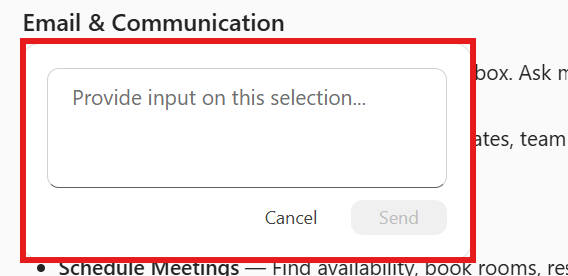
9- Provide Input: My favorite part is the Provide Input functionality. It seems simple, but it addressed a pain point I didn't realize I had. When you highlight text from a response Cowork provided, a Provide Input button/field appears, allowing you to prompt against the highlighted section. This is helpful because you no longer need to describe to Cowork what part of its response you're referencing, now you can just highlight it and ask a question.
10- Outlook in Cowork: When you want Cowork to draft an email, it will create it in Outlook but give you visibility into the email directly in the conversation. This means you do not need to switch applications mid-workflow. You can draft with Cowork and send directly in the same space.
Final Helpful Tips
1- Although you can reference specific files, emails, and chats in the prompt field, you don't always need to. In fact, by simply describing the email or chat, Cowork can find it and reference it as it works to generate a response.
2- When scheduling emails, I recommend giving Cowork authority to always send the email (via Permissions). Otherwise, the email will sit in drafts until you go into the Task to hit the Send button.
3- Feel free to close your computer while Cowork is processing a prompt, it will continue working.
4- Cowork is extremely new and will continue to evolve. If you're unsure what it can do, just ask! For example, upload a file you need help with and ask Cowork how it can help you.
That's a wrap, for now! I'm sure there will be many more blog posts and videos on Cowork as it continues to evolve.
If you get a chance to try it, I'd love to hear what you think!
Thank you for reading!
-The Autonomous Edge