Calendar Instructions in Outlook

How much time do you spend trying to clean up your calendar? How many declined or cancelled calls still linger on your calendar, just cluttering it up? Ever wish you can just auto-accept calls that are scheduled during your work hours?
I'm sure you guessed it by now; all of this can now be delegated to Copilot with the new Calendar Instructions in Outlook.
Similar to the Draft Instructions in Outlook, the Calendar Instructions guide Copilot in what Copilot is approved to take action on. You can tell Copilot to always accept calendar invitations from team members or during specific times you define, as an example.
Think about it, every calendar invitation we receive throughout the day takes us away from what we were working on. And every time we switch tasks, it takes us even more time to get back to our flow of work. Delegating these time-consuming tasks to Copilot will allow us to focus on the strategic and impactful work we were tasked to do.
How to set up Calendar Instructions
My personal favorite part of this new feature is the experience in setting them up. Unlike the Draft Instructions where you need to type out exactly what you're looking for, Calendar Instructions can be defined through a conversation with Copilot.
Let me show you what I mean.
1- Open Outlook and navigate to the Settings (gear icon).
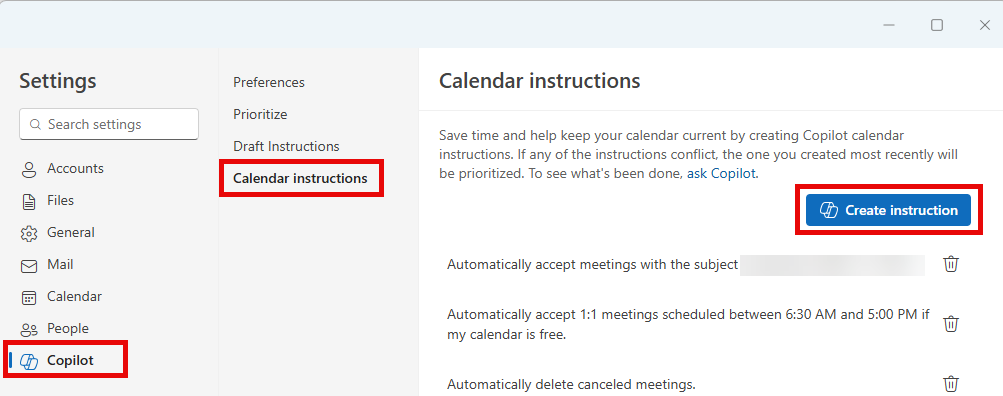
2- Select Copilot from the left panel, then Calendar Instructions.
3- Select Create Calendar Instructions.
4- You'll notice that Copilot opens up with an overview of what is possible with Calendar Instructions. Copilot may also give you some suggestions. Now you just have a conversation with Copilot to define what you want.
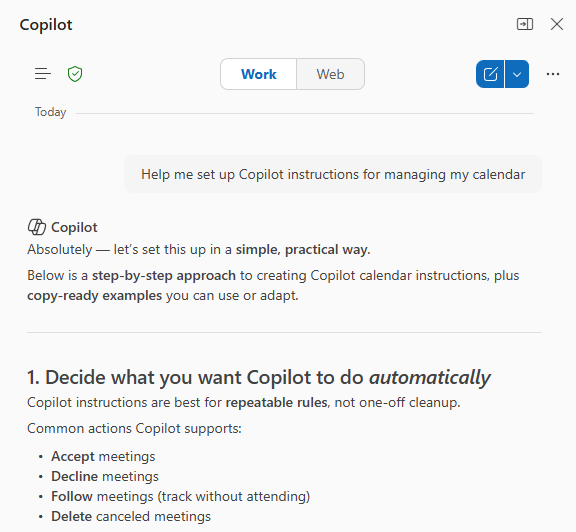
5- Confirm all the instructions by letting Copilot know you're satisfied with the instructions it has drafted.
6- Copilot will now officially create your Calendar Instructions.
7- Repeat steps 1-2 to confirm your instructions appear. Your Calendar Instructions are now live. Next time you receive an invitation that meets the condition(s) of your instructions, Copilot will know exactly what to do.
Common Calendar Instructions
The following sample instructions were provided by Copilot as I was going through the process of setting up my own Calendar Instructions. You'll likely receive the same 😄
Copilot can automate the following:
1. Automatically accept meetings- helpful if:
- You want to auto‑accept anything from specific people (ex: your manager)
- You want to auto‑accept meetings only when your calendar is free
2. Automatically follow meetings- use this when:
- You don’t plan to attend, but still want the recap automatically
3. Automatically decline meetings- helpful for:
- Blocking time (e.g., no meetings after 4 PM)
- Declining meetings that conflict with high‑priority blocks
4. Automatically delete canceled meetings- helpful if:
If you want a tidy calendar without manual cleanup.
What Calendar Instructions are you going to set?
Thank you for reading!
Please share your ideas in the comments—what topic would you like me to cover next?
-The Autonomous Edge