Custom Summary Templates in Microsoft Teams

If you haven't yet used the Teams meeting recaps for Copilot generated notes, meeting transcript, audio overview, etc., now is the time!
Until very recently, Copilot would generate meeting notes for each transcribed/recorded meeting. The notes would include meeting notes and follow-up tasks. For starters, those notes weren't too bad. However, you may be on a call that requires very specific post-meeting notes. For example, if you are a consultant on a call with your client, your meeting notes would also need to include any decisions made, risks, action items, etc. These details aren't typically included in the Copilot generated meeting notes– until now!
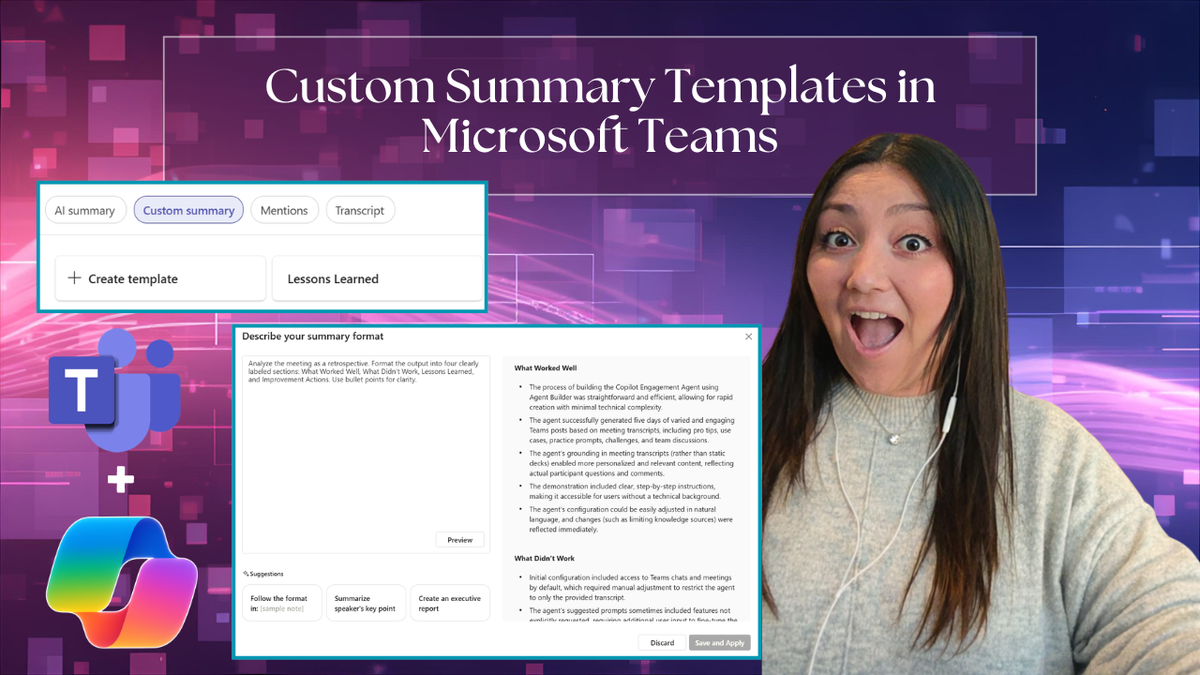
You now have control over how the meeting notes are generated. As you can see from the screenshot below, there are two templates that come out of the box: Speaker Summary and Executive Report.
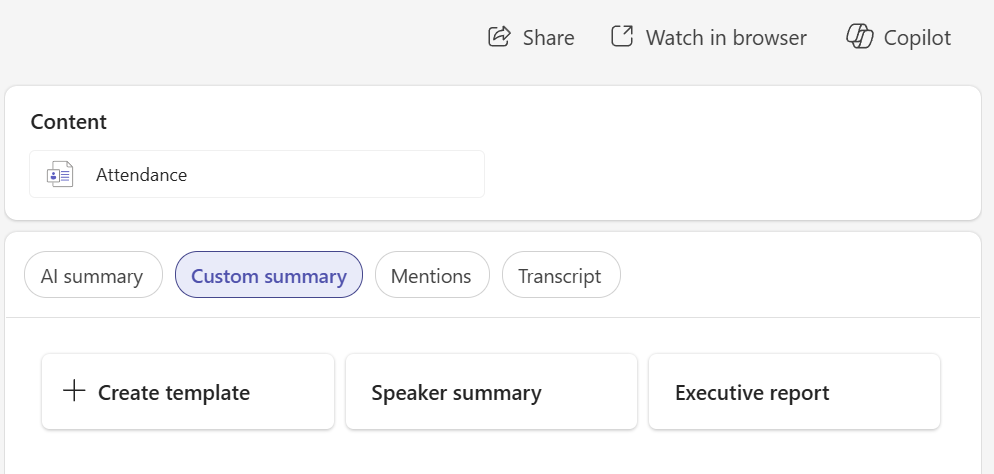
Speaker Summary: Provides a summary of what each speaker talked about.
Executive Report: Includes an overview and key updates.
In addition to these, you now have the ability to create your own templates, and they're very easy to create, let me show you!
Creating a new template
1- Open any meeting recap and select Custom summary.
2- Select Create template.
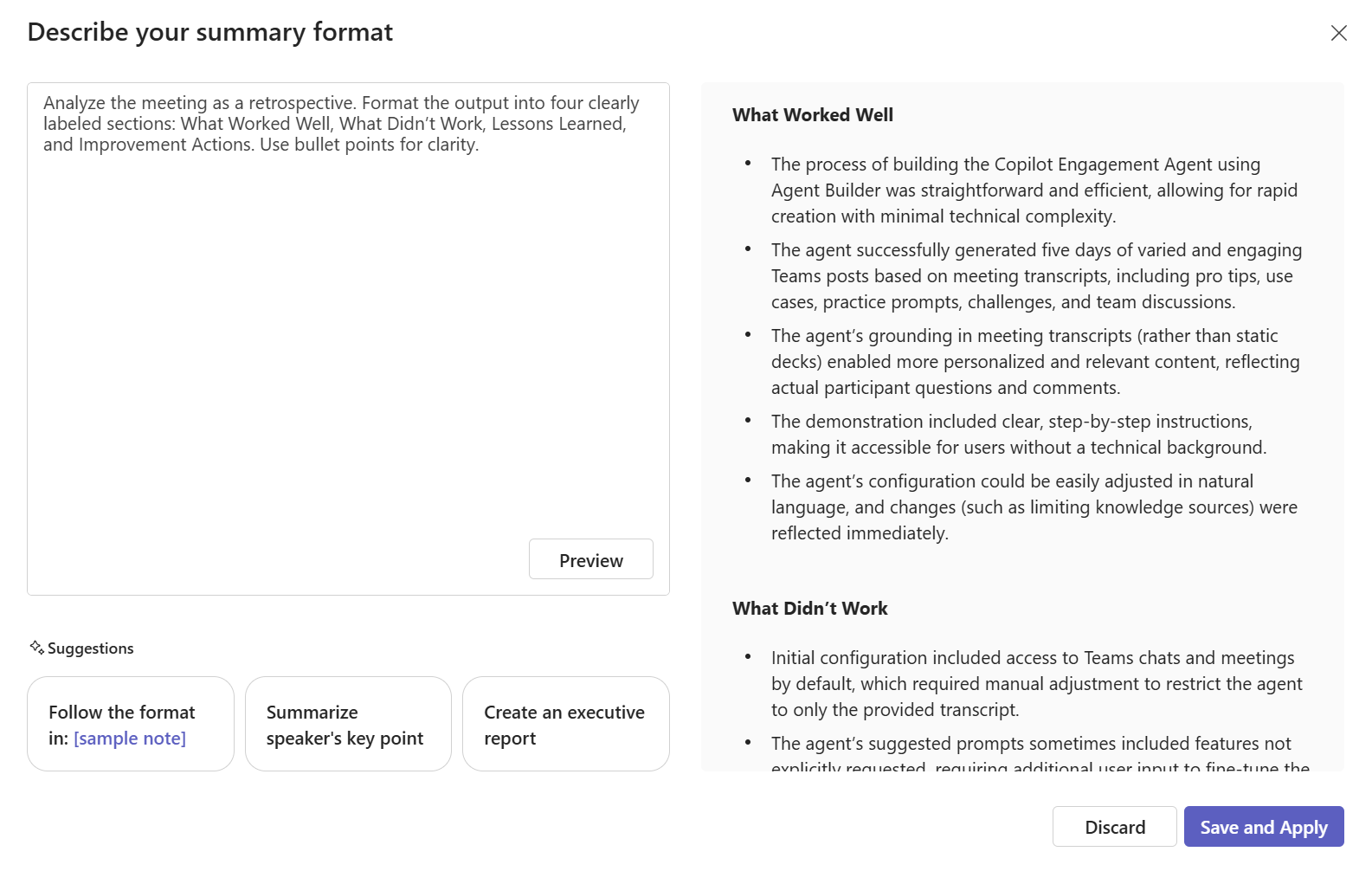
3- Write out your instructions on the left side of the screen.
4- Test it out by selecting Preview.
5- View the preview on the right side of the screen and make adjustments to the instructions, as needed.
6- Once you're satisfied with the output, select Save and Apply.
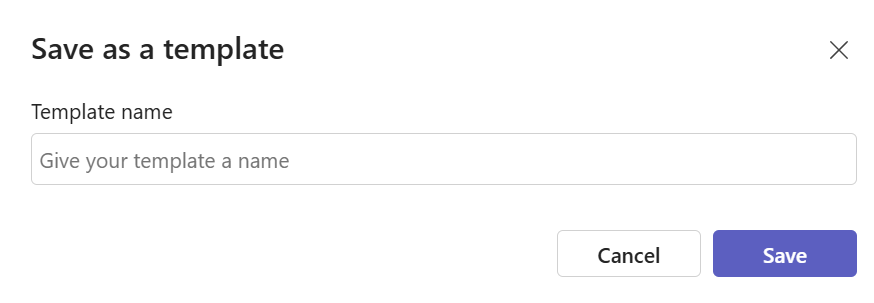
7- Give your template a name and select Save.
8- You're all done! Next time you open a meeting recap, your custom templates will appear.
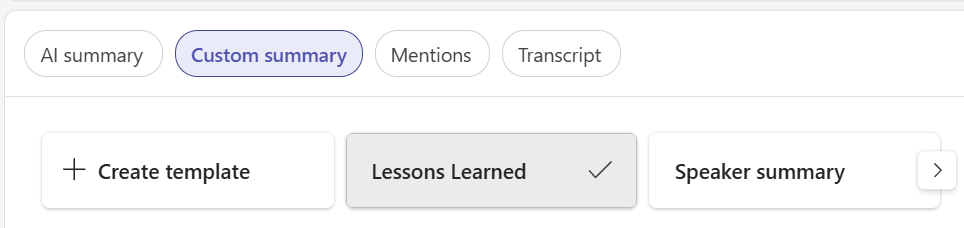
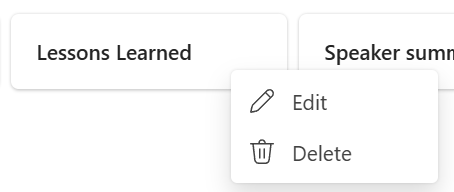
If you want to edit a template after creating it, simply hover over the template, select the three-dot menu and select Edit.
Need some ideas on what templates to create? I got you covered!
Template Ideas
- Change Impact Summary
- Instructions: Identify any changes discussed in the meeting. Structure the output as a table with columns for Change Description, Impacted Roles or Teams, Type of Impact (process, role, tool, behavior), and Training or Adoption Considerations.
- Customer / Client Recap
- Instructions: Summarize the meeting from a customer perspective. Format the output using labeled sections: Customer Goals, Pain Points, Questions Raised, Commitments (Customer vs. Team), and Next Steps. Use clear, professional language suitable for sharing externally.
- Product & Solution Feedback
- Instructions: Analyze the discussion for product or solution feedback. Organize the output into sections for Pain Points, Feature Requests, Workarounds, and Positive Feedback. Use bullet points under each section.
- Training & Enablement Insights
- Instructions: Analyze the meeting for learning and adoption insights. Format the output as a bulleted list grouped by category, including Common Questions, Areas of Confusion, Requested Topics, and Suggestions for Improvement.
- Risk, Issue & Dependency Log
- Instructions: Identify risks, issues, or dependencies mentioned in the meeting. Present the output as a table with columns for Risk or Issue, Impact, Related Dependency, and Suggested Mitigation or Follow‑Up.
- Compliance & Governance Record
- Instructions: Capture governance‑relevant content from the meeting. Structure the output using formal section headers: Topics Reviewed, Decisions and Approvals, Compliance Considerations, and Outstanding Actions or Evidence Required.
- Retrospective / Lessons Learned
- Instructions: Analyze the meeting as a retrospective. Format the output into four clearly labeled sections: What Worked Well, What Didn’t Work, Lessons Learned, and Improvement Actions. Use bullet points for clarity.
- Executive Brief
- Instructions: Summarize the meeting for an executive audience. Format the output using clear section headers. Include sections for Key Decisions, Strategic Implications, Risks or Blockers, and Items Requiring Leadership Attention. Keep each section concise and written in bullet points.
- Action Items & Owners
- Instructions: Identify all action items discussed or implied in the meeting. Present the output as a table with columns for Action Item, Owner, Due Date, and Notes or Dependencies. Only include information explicitly mentioned or clearly implied.
I'm very excited to start using my custom templates, I just know they're going to save me a ton of time!
Which templates are you creating?
Thank you for reading!
-The Autonomous Edge