The Power of Copilot Notebooks


Copilot Notebooks are not getting the love they deserve. And to be honest, many people don't even know they exist. As I've had conversations with colleagues who ask my advice for how to build an agent for their use case, I often come to the conclusion that they actually just need a Copilot Notebook.
When faced with a use case, truly think about the pain point you're wanting to address. Who needs access to this new solution? How often will it be used? Does it need to execute any workflows? Does it only need to help answer questions? What knowledge sources does it need? Is your use case for personal productivity?
These questions will help you decide what kind of solution to build. If you want to build an agent that is grounded in particular knowledge sources to help provide information and you don't yet have the technical knowledge to build an agent (yet), consider a Copilot Notebook instead.
What is a Copilot Notebook? Imagine having a folder that stores information for a particular project (Word documents, PDFs, Excel workbooks, PowerPoint decks, etc.) and now imagine having Copilot sitting on top of those files...that's a Copilot Notebook.
What can I do with a Copilot Notebook?
- Full control over knowledge sources: Upload specific files Copilot should reference.
- Audio Overview: Generate a podcast-like audio overview, ingesting the content across all files, providing you a concise summary.
- Custom Instructions: Provide Copilot guidance for how it should respond to you.
- Centralized conversations: Access all historical chats within the Copilot Notebook.
- Shareable amongst team members (NEW!): One of the newest features of Copilot Notebooks is the ability to share the notebook with a colleague. Now you all can work and collaborate together.
Copilot Notebooks offer you the space to ground Copilot in particular knowledge sources and only those knowledge sources.
If you were to open M365 Copilot and attach those same files and ask your questions, Copilot will reference what you attached but may also pull information from other places (you may not want that). Copilot Notebooks give you full control over what Copilot references to generate its responses.
Let's talk about some use cases to help you get started.
Use Cases
- Project Onboarding: Imagine getting pulled into a project mid-way and all you received were several files. Shorten the time it takes you to get ramped up by creating a Copilot Notebook, uploading the files you received and generate an audio overview.
- Knowledge Transfer: Are you tasked with training a new team member? Create a Copilot Notebook with all the information they'll need then share the notebook with them. This will allow them to ask Copilot any question without them feeling silly for asking.
- Technical Documentation: Upload datasets, schemas, or workflow descriptions and then have Copilot generate reference guides, data dictionaries, or architecture summaries, accelerating documentation work for project teams. You can add more references and continue from previous chats without having to provide context all over again.
- Market Strategy: Upload market research data, competitor information, or customer segments and then let Copilot analyze trends, identify gaps, and generate strategic recommendations, helping teams quickly shape data-driven go-to-market plans.
- Respond to an RFP: Upload the RFP requirements, past proposals, and your solution documentation and then use the notebook to analyze themes, extract mandatory requirements, map your capabilities to each section, and generate draft responses - making it easy to collaborate with SMEs by sharing the notebook so they can refine content, validate accuracy, and co-create a polished, compliant proposal.
So, how do you create a Copilot Notebook?
Creating a Copilot Notebook
- Navigate to M365 Copilot.
- Open the navigation panel and select Notebooks.
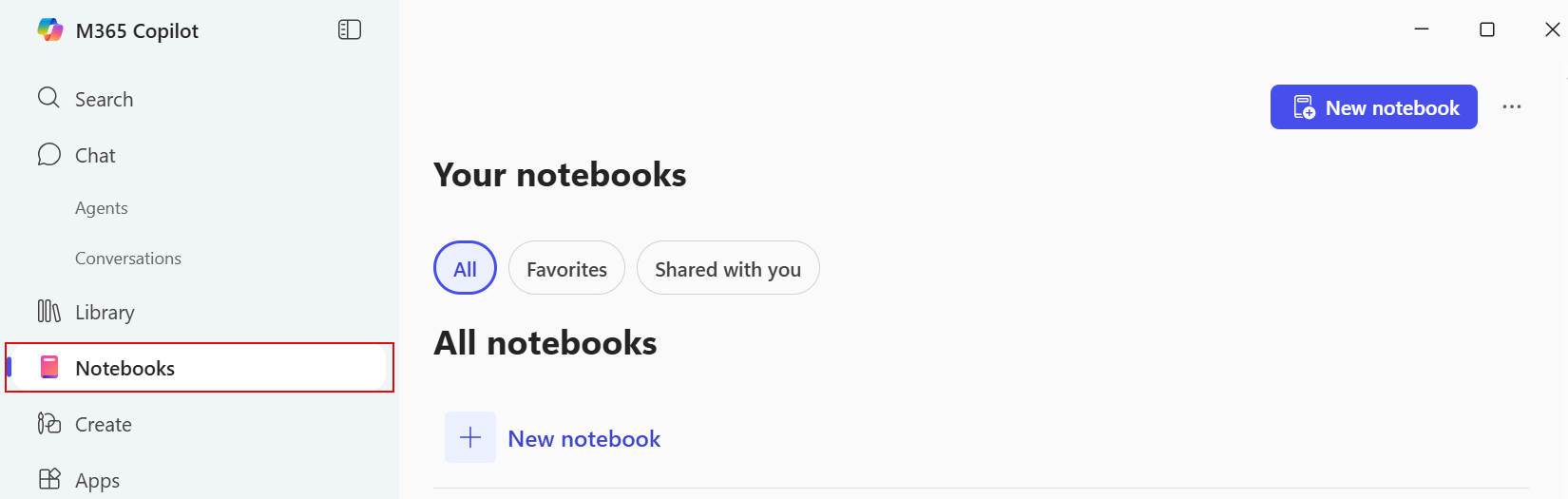
- Select New notebook.
- Enter a name for the notebook and select the file(s) you want to upload. Uploading a file is not required at this point. You can always go back and upload files at a later time.
*Take note of the supported file formats (DOCX, PPTX, XLSX, PDF).
- Select Create.
Copilot Notebook Navigation
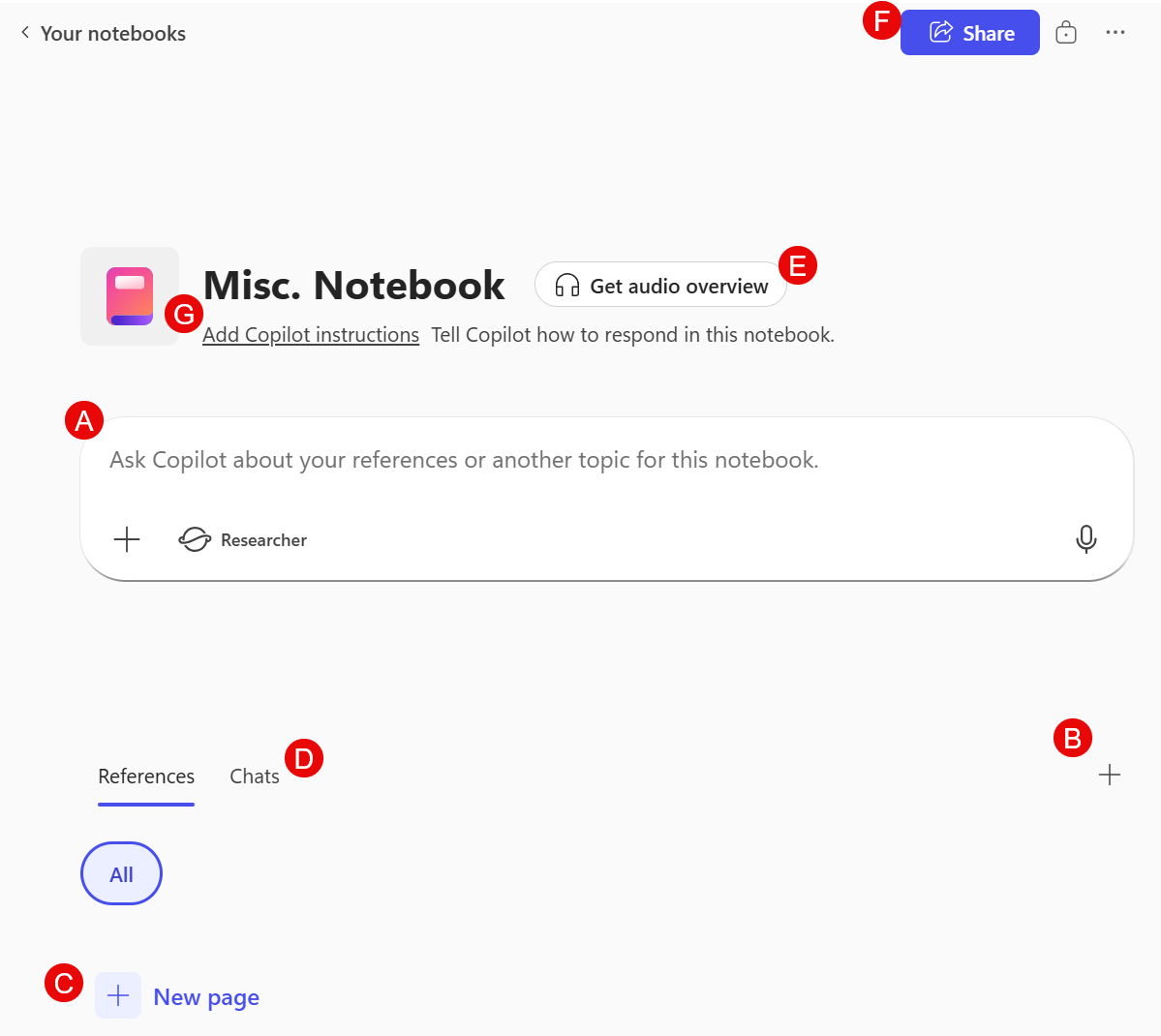
A. Prompt field: Enter your prompt here. Within the prompt field you can also tag a different agent or include other sources.
B. Add references: Upload new references at any time.
C. New page: Create a Copilot Page (OneNote page) to store information or collaborate with team members.
D. Chats: View historical chats and pick up where you left off or start a new conversation.
E. Get audio overview: Generate an audio overview that condenses the key points from your uploaded references into a concise summary - perfect for on-the-go productivity.
F. Share: Share your Copilot Notebook with your team for collaboration.
G. Add Copilot instructions: If you find that Copilot is not giving you the information you're expecting, you can provide tailored instructions to help guide it in generating responses. You can ask Copilot to focus on specific topics, use a specific tone, or respond in a particular format.
How will you be using Copilot Notebooks?
Thank you for reading! Please share your ideas in the comments—what use cases would you like me to cover next?
-The Autonomous Edge