The Copilot Feature Most Teams Aren't Using (But Should)


"Do you have a good prompt for this?"
Let's set the stage– You've started shifting into an AI-first mindset– approaching challenges by asking, "How can AI help here?"
You open Copilot...and stare at a blank prompt box. Your mind goes blank.
Where do you even begin?
What if your prompt doesn't give you what you need, especially when you're short on time? It's frustrating when you've committed to using AI in your day-to-day work but don't quite know where to start.
Maybe you've begun building a personal library, stored in a Word doc or Excel file. Or maybe your team shares prompts in a running group chat. Either way, it's not very efficient (or effective).
A lot can happen in the time it takes to remember where your prompts live or scroll through that chat...ping! A new request comes in, and you've completely lost your train of thought. Instead, leverage a central, easy-to-find location where your entire team can share prompts for maximum efficiency.
And no, I'm not talking about Prompt Buddy or a SharePoint list. This is even easier.
I'm talking about Prompt Gallery, which already comes with your Copilot license.
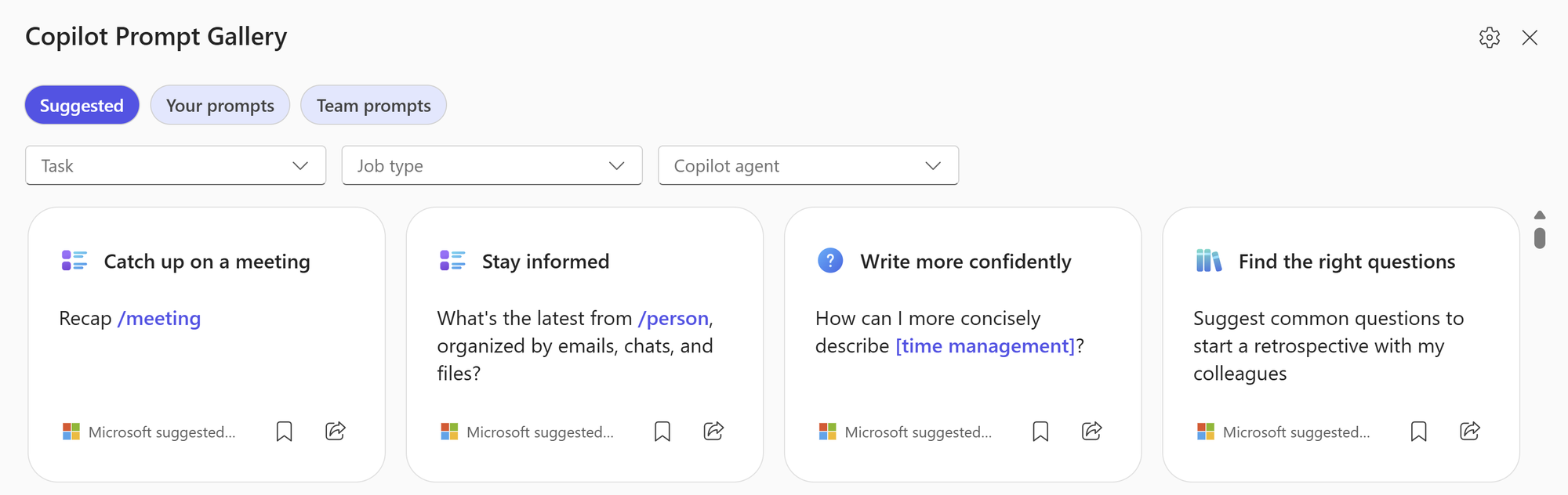
Prompt Gallery organizes prompts into three buckets:
- Suggested prompts
- Your prompts
- Team prompts
I want to focus on Team Prompts – why they're so powerful and how to use them.
The power of sharing prompts with your teams is that they're instantly available directly in Copilot. No separate document, lists, or group chats to search through. The next time they open Copilot, your prompt is right there in the Prompt Gallery, ready to use!
How to share a prompt with your team
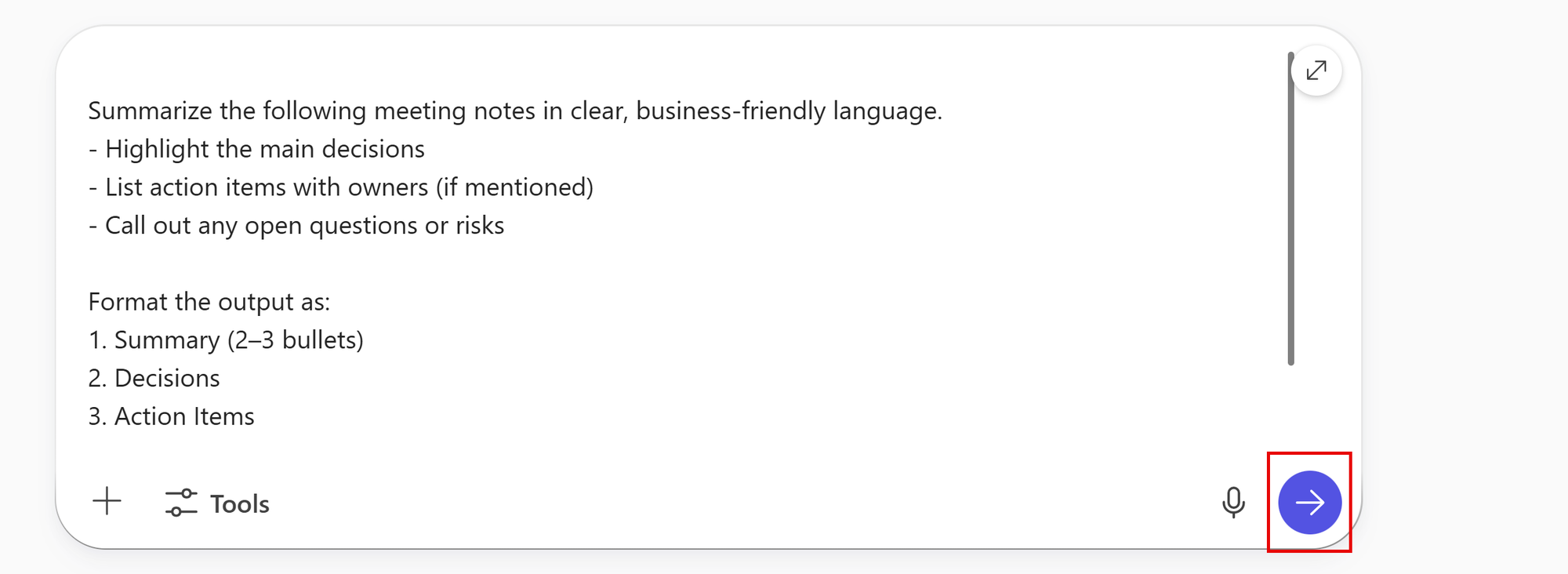
1- Open Copilot and process your prompt.
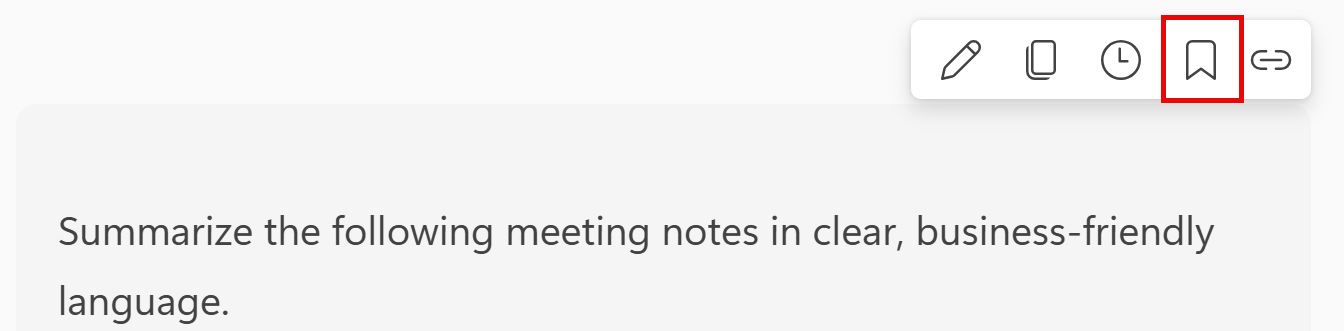
2- Hover over your initial prompt and select the Save icon.
3- Assign a title for the prompt and select Save.
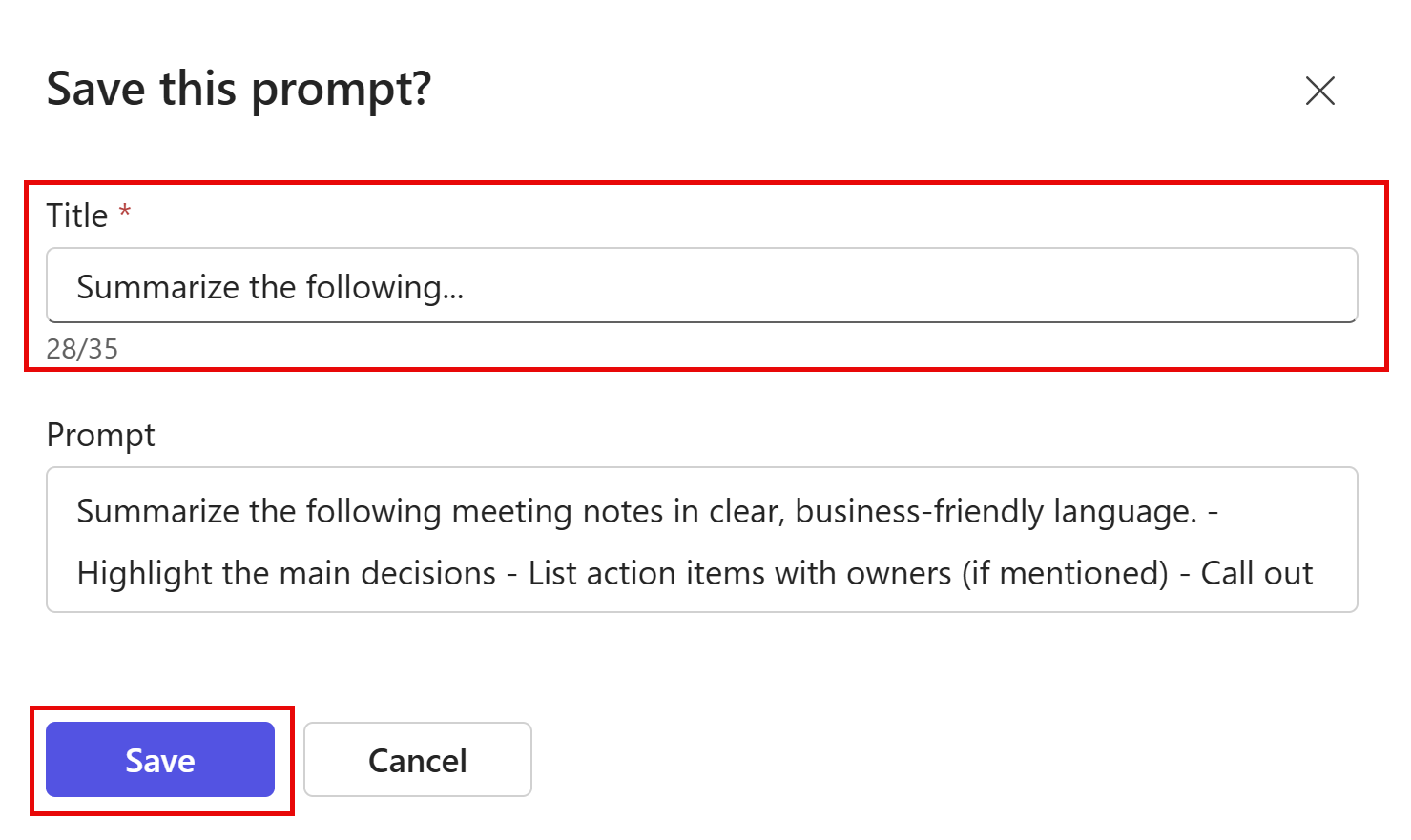
4- Select View in Copilot Prompt Gallery from the pop-up. Alternatively, select the View Prompts icon near the prompt field.
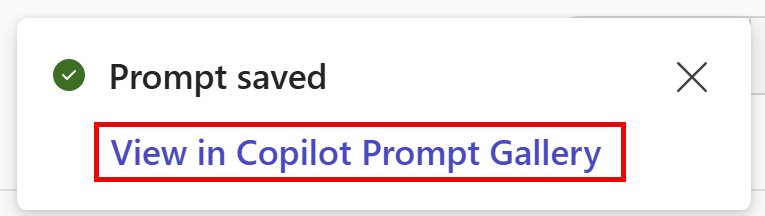
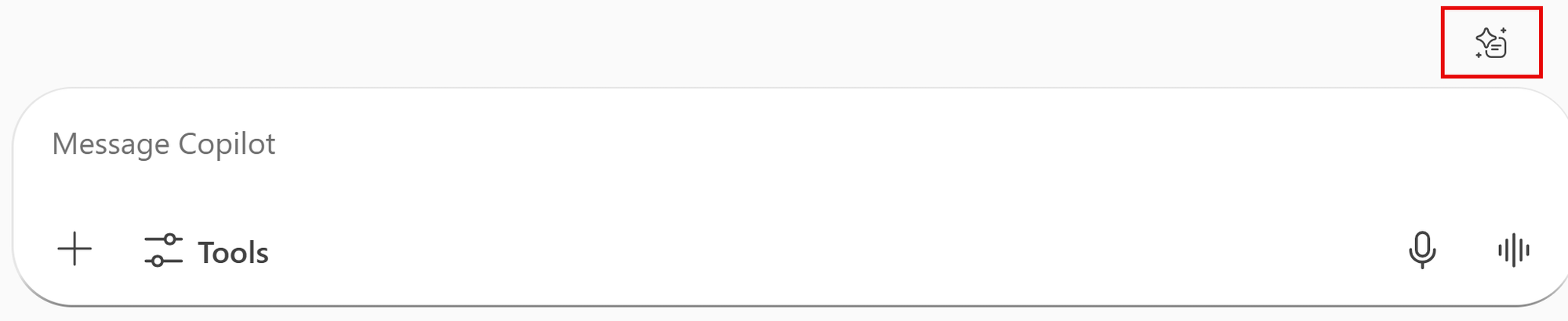
5- Select the Your prompts category. You should see the prompt you just saved. Please note, at this point in the process, the prompt is only visible to you.
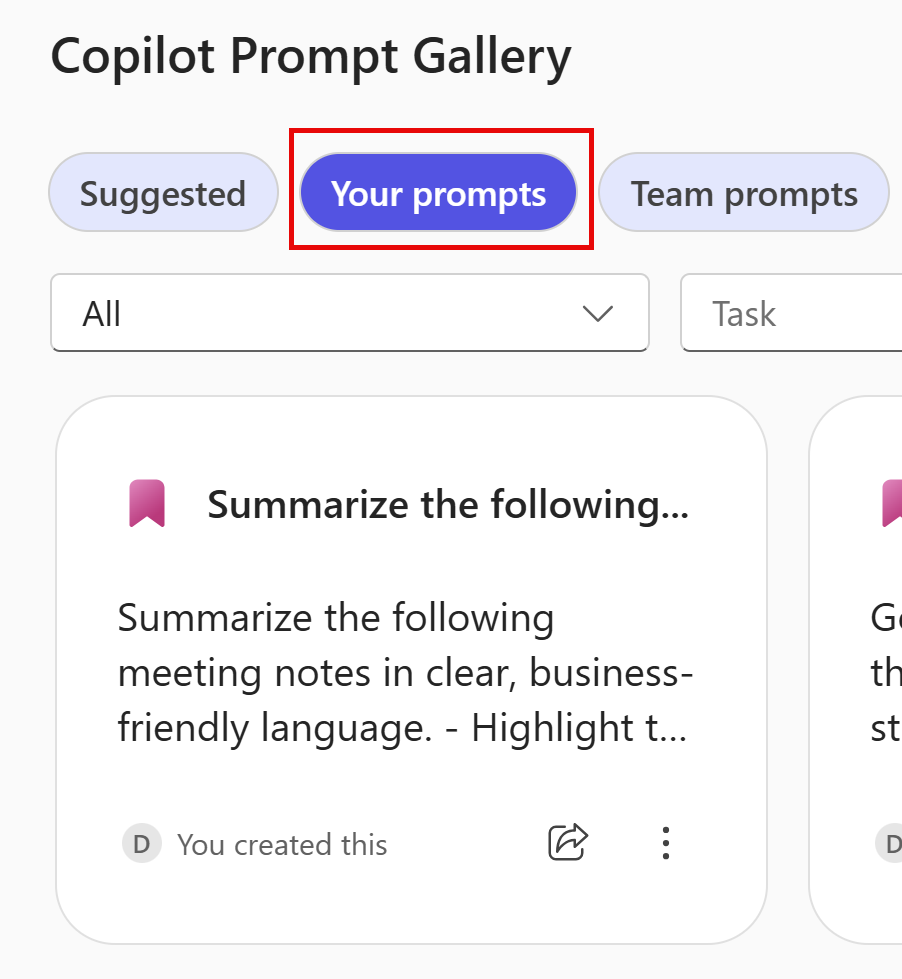
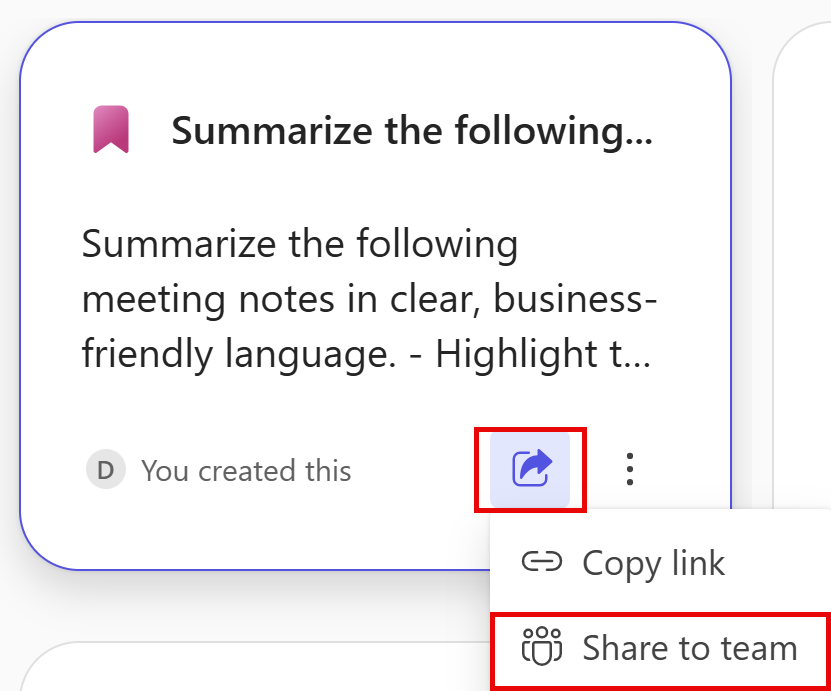
6- Select the Share icon and select Share to team.
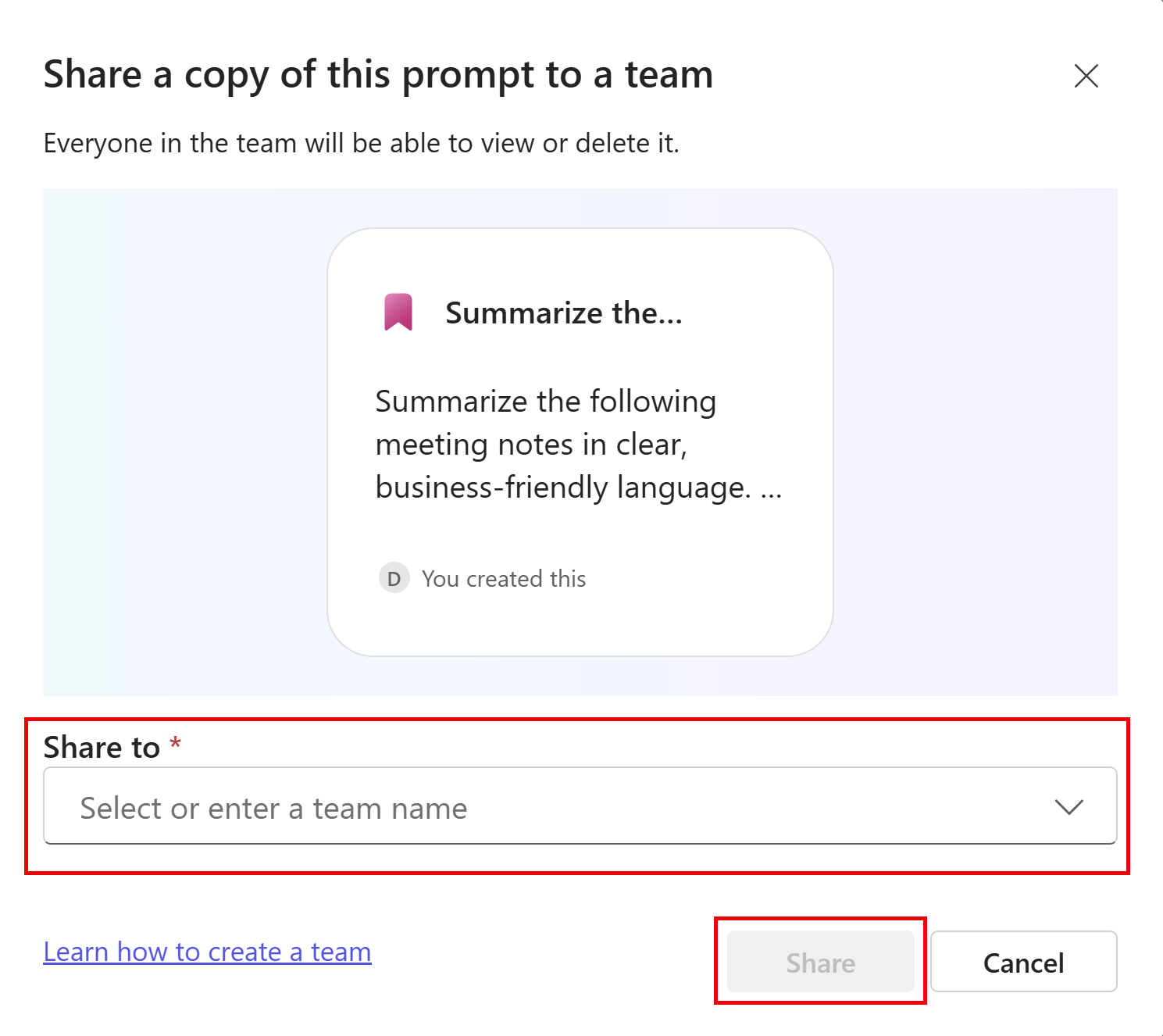
7- Select the team you'd like to share the prompt with and select Share. The teams you see align with the teams you see in Microsoft Teams. At this time, you are not able to share the prompt across multiple teams at once. To do this, you'll need to repeat steps 6 and 7 for each team.
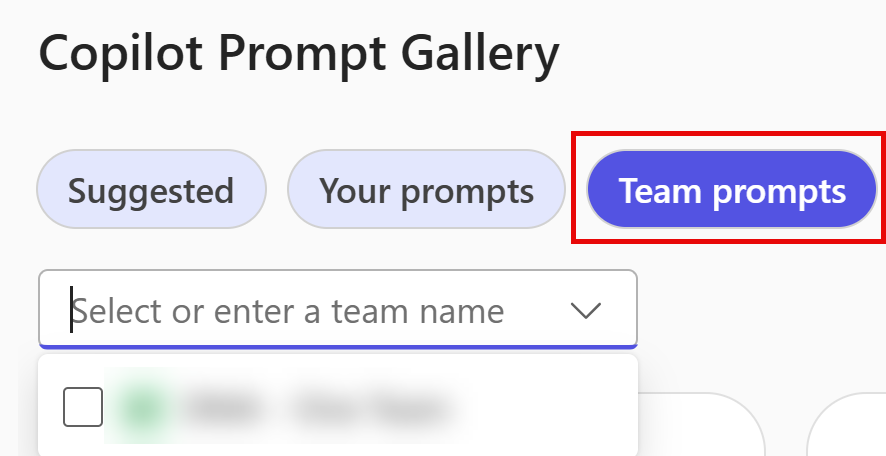
8- To view these prompts, select Team prompts from the Prompt Gallery. Use the drop-down to filter the prompts by those for a particular team.
9- Select any prompt from the gallery and it will automatically populate in the prompt field.
Imagine a world where a colleague is stuck on a task—and when they open their team’s shared prompts, the exact prompt they need is already there.
Or imagine a new hire opening the Prompt Gallery on day one and being greeted with a collection of prompts designed to accelerate their onboarding from the start.
It’s a better way of working—and it starts with sharing your prompts.
Thank you for reading!
Please share your ideas in the comments—what use cases would you like me to cover next?
-The Autonomous Edge